
Samsung Galaxy phones offer several ways to customize the lock screen. You can change the wallpaper, clock style, notification layout, shortcuts, widgets, and other visual elements without installing extra apps.
The exact options may look slightly different depending on your Galaxy model and One UI version.
Change the Lock Screen Wallpaper
Changing the wallpaper is one of the easiest ways to personalize your Samsung lock screen.
Open Settings on your Samsung phone.
Go to Wallpaper and style.
Tap Change wallpapers.
Choose an image from your Gallery or select one of Samsung’s available wallpapers.
Select Lock screen when asked where you want to apply the wallpaper.
Adjust the image position if necessary, then tap Done.
Your selected image will now appear whenever you wake the phone.
Customize the Lock Screen Clock
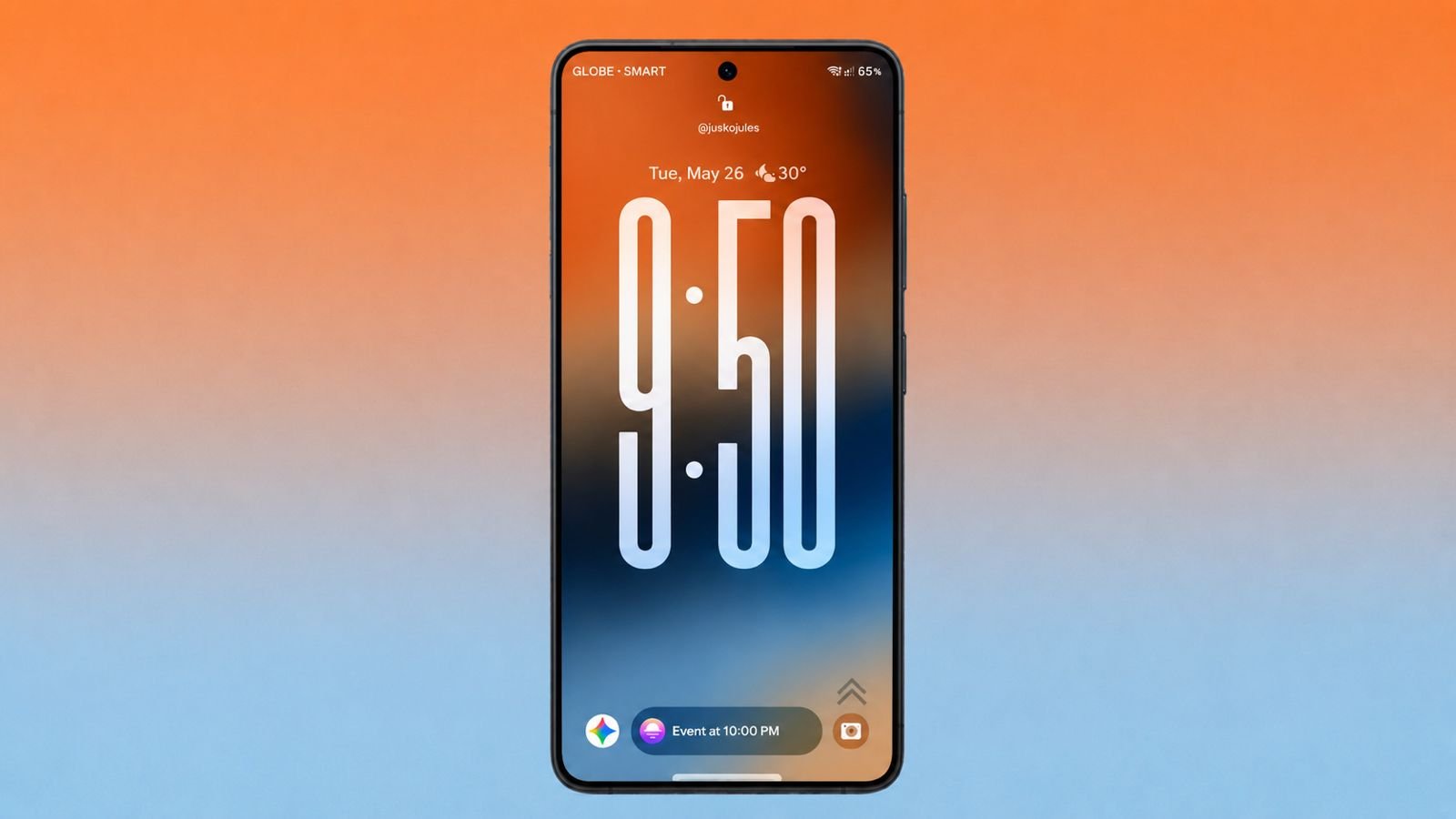
Samsung allows you to change the appearance of the clock directly from the lock screen.
Wake your phone and remain on the lock screen.
Touch and hold an empty area of the lock screen.
Authenticate using your PIN, password, pattern, or fingerprint if requested.
Tap the clock.
You can then choose from the available clock styles.
Depending on your One UI version, you may also be able to change the clock:
- Font
- Size
- Color
- Position
- Style
Choose the design you prefer and tap Done to save your changes.
Generate PIN Number
Enter a number, choose PIN length and generate
Change Lock Screen Shortcuts
Samsung usually places two shortcuts near the bottom corners of the lock screen.
These can be changed to apps or features you use more frequently.
Touch and hold the lock screen.
Unlock the phone when prompted.
Tap the shortcut located in the bottom-left or bottom-right corner.
Choose another supported app or function.
For example, you may want quick access to the camera, flashlight, calculator, or another frequently used feature.
Tap Done after making your changes.
Customize Lock Screen Notifications
You can control how notifications appear on your Samsung lock screen.
Open Settings.
Go to Notifications.
Open Lock screen notifications or the equivalent option available on your Galaxy phone.
You may be able to choose whether notifications appear as icons, cards, or detailed information.
For better privacy, you can hide notification content while still showing that a notification has arrived.
This is particularly useful when other people can see your phone while it is locked.
Add or Customize Lock Screen Widgets
Some Samsung Galaxy phones allow you to access widgets directly from the lock screen.
Open Settings.
Go to Lock screen and AOD.
Look for Widgets.
Enable the widgets you want to use.
Available options may include:
- Weather
- Music controls
- Alarm
- Calendar information
- Digital Wellbeing
- Voice Recorder
The exact widget selection depends on your Galaxy model and software version.
Customize Always On Display
If your Samsung phone supports Always On Display, you can customize it separately.
Open Settings.
Go to Lock screen and AOD.
Tap Always On Display.
You can configure when the feature appears and customize available clock or notification options.
Always On Display can show useful information while the main screen remains off.
However, keeping it active for long periods may use additional battery power.
Use Samsung Good Lock for More Customization
Samsung users who want more control can use Samsung’s Good Lock customization app where it is officially available.
Good Lock includes modules that can provide additional control over different parts of the Galaxy interface.
For lock screen customization, available modules may let you adjust the position and appearance of lock screen elements beyond the standard One UI options.
Available Good Lock features can vary by device, region, and One UI version.
Keep Lock Screen Security Enabled
Visual customization should not replace proper device security.
Open Settings > Lock screen and AOD > Screen lock type to review your current security method.
For better protection, use a PIN, password, or secure pattern together with biometric authentication when supported.
Avoid using extremely simple PINs such as repeated or predictable numbers.
Final Thoughts
Samsung Galaxy phones provide plenty of built-in options for customizing the lock screen. You can change the wallpaper, clock, shortcuts, notifications, widgets, and Always On Display while keeping the phone secure.
Start with the built-in lock screen editor first. If you want deeper customization, Samsung Good Lock can provide additional controls on supported Galaxy devices.