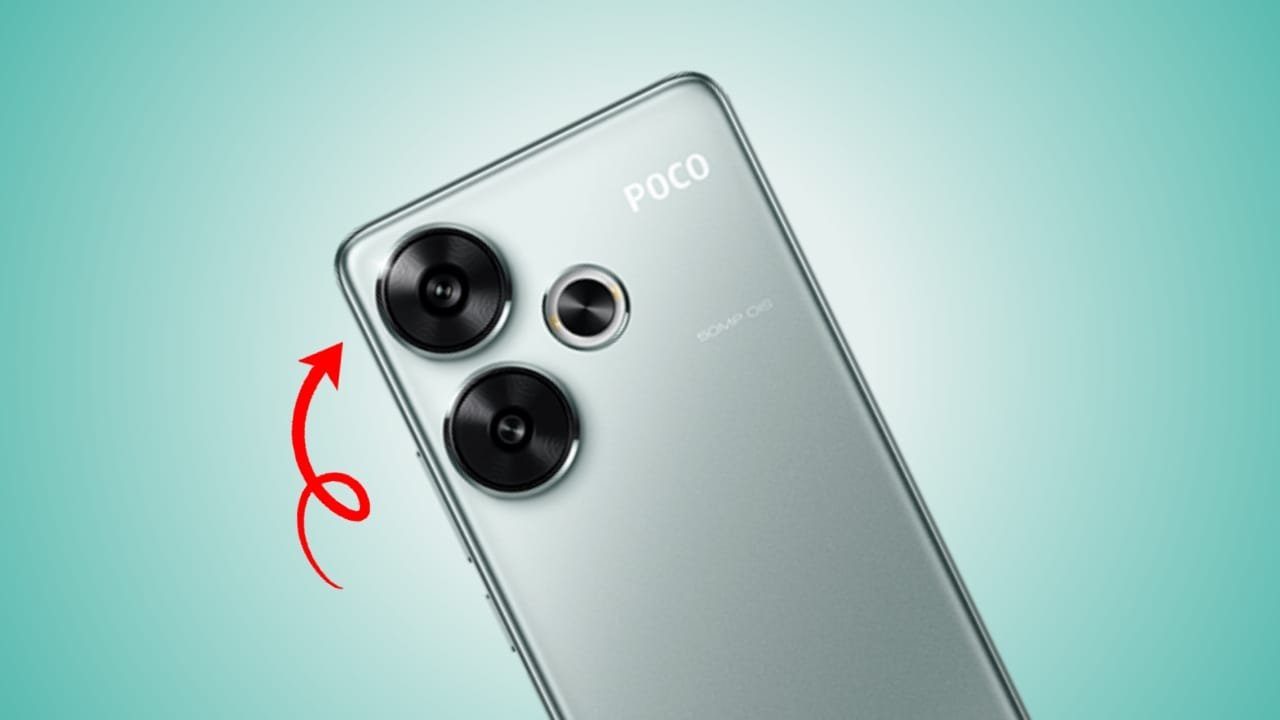

Congratulations on your new Poco F6! You’ve just purchased one of the most powerful and value-packed phones on the market. Its Snapdragon 8s Gen 3 processor is a beast, capable of handling any game you throw at it. But what if I told you that out of the box, your phone is intentionally holding back some of its true power?
To balance battery life and performance, Xiaomi’s HyperOS sets the phone to a default “balanced” state. To transform your device from a powerful daily driver into an elite, lag-free gaming machine, you need to tweak a few hidden settings. This guide will walk you through five essential changes that will unlock a stable 90fps experience and give you a competitive edge.
1. Activate “Performance Mode” (The Master Switch)
By default, your phone operates in “Balanced mode” to conserve battery. For gaming, you want to tell the system to prioritize power above all else. This is the single most important setting to change.
- Why it works: Performance Mode allocates more power to the CPU and GPU, reduces system-level restrictions, and ensures the processor runs at higher clock speeds for longer. This directly translates to more stable frame rates.
- How to activate it:
- Go to your phone’s Settings.
- Scroll down and tap on Battery.
- You will see a dial with “Save battery,” “Balanced,” and “Performance.”
- Tap on “Performance”. You may see a warning about increased battery consumption; accept it. Leave this mode on whenever you’re planning a serious gaming session.
2. Unleash Game Turbo’s Full Potential
Game Turbo is Poco’s dedicated gaming suite, but its most powerful settings are not enabled by default. You need to dive in and customize it for each game.
- Why it works: The default Game Turbo settings are mild. By enabling its “Performance enhancements,” you can prevent Wi-Fi network switching, optimize touch controls, and reduce background syncs that cause in-game lag.
- How to optimize it:
- Open the Security app on your phone.
- Scroll down and tap on Game Turbo.
- Tap the Settings icon (a gear) in the top-right corner.
- Go to Performance mode and turn on “Performance enhancements” and “Wi-Fi optimization.”
- Go back and tap on Performance settings. Here, you can select specific games like BGMI and enable “Enhanced visuals” and other pro-level tweaks.
3. Lock Down Background Apps
Nothing kills a gaming session faster than a random app deciding to update or sync in the background, consuming precious RAM and CPU cycles. You need to tell your phone which apps are non-essential.
- Why it works: HyperOS can be aggressive with background processes, but some apps can slip through. Manually restricting apps you don’t need ensures that 100% of the phone’s resources are dedicated to your game.
- How to do it:
- Go to Settings > Apps > Manage Apps.
- Find an app you don’t need running in the background (e.g., a shopping app, a social media app you rarely use).
- Tap on it, then select “Battery saver”.
- Choose the option “Restrict background apps”. Do this for any app that isn’t critical (leave WhatsApp, etc., alone).
4. Force Peak Refresh Rate via Developer Options
Your Poco F6 has a beautiful 120Hz display, but sometimes games or the system itself might not run at the highest refresh rate to save power. For the smoothest experience, you can force it.
- Why it works: This ensures your display is always running at its maximum refresh rate, providing the smoothest possible visuals and the fastest touch response.
- How to enable it:
- First, enable Developer Options: Go to Settings > About phone and tap on the “HyperOS version” box repeatedly (about 7-8 times) until you see the message “You are now a developer!”
- Now go back to Settings > Additional settings > Developer options.
- Scroll down until you find the option “Enable peak refresh rate” and turn it on.
5. Set the Correct Graphics Driver for Each Game
This is an advanced, pro-level tweak hidden within Developer Options that can solve stubborn stuttering issues in specific games.
- Why it works: It allows you to bypass the default system driver and use a specific game-optimized graphics driver, which can lead to better stability.
- How to set it:
- Go to Settings > Additional settings > Developer options.
- Scroll down and find “Graphics Driver Preferences”.
- Find your game (e.g., BGMI) in the list.
- Tap on it and change the setting from “Default” to “System Graphics Driver”.
By taking 10 minutes to configure these five settings, you will transform your Poco F6 from a great phone into an elite gaming device tailored for performance. Now go, and claim that chicken dinner.
🔔Join our Official Channel
Get direct updates and exclusive content from our official WhatsApp channel.